MacHunt is a local file-search app for macOS that indexes file and folder metadata and presents the results in a native SwiftUI and AppKit interface.
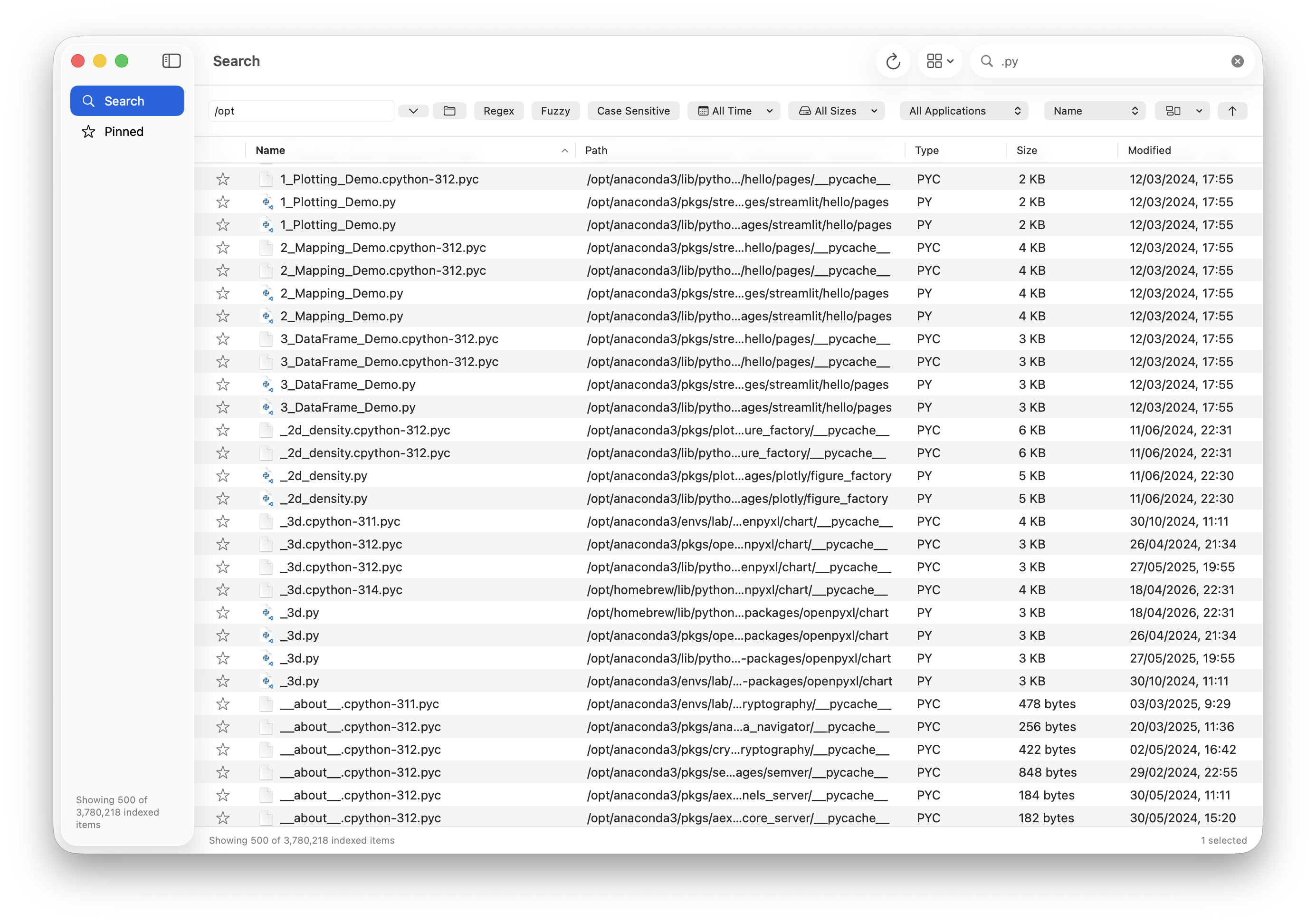
When you remember part of a filename but not its folder, a focused result table can be more useful than opening one Finder window after another. MacHunt’s Swift beta brings filename search, filters, Quick Look, and file actions into one window (see Figure 1).
The repository is a fork of dacj4n/MacHunt. The original Tauri, React, and Rust version remains in the root; this guide covers the native Mac version in swift_beta/. It is labelled Beta, so start with folders you use regularly and see how its search fits your files.
Install the native beta
Download the Swift beta DMG from Releases, open it, and drag MacHunt to Applications. The published beta targets Apple silicon and requires macOS 14 or later. It is ad-hoc signed and not notarized, so review the release instructions if macOS blocks the first launch.
The app can build its initial index. Choose the folders you actually want to search and review exclusions before indexing everything. A larger scope means more initial scanning, and permissions can prevent some paths from being read.
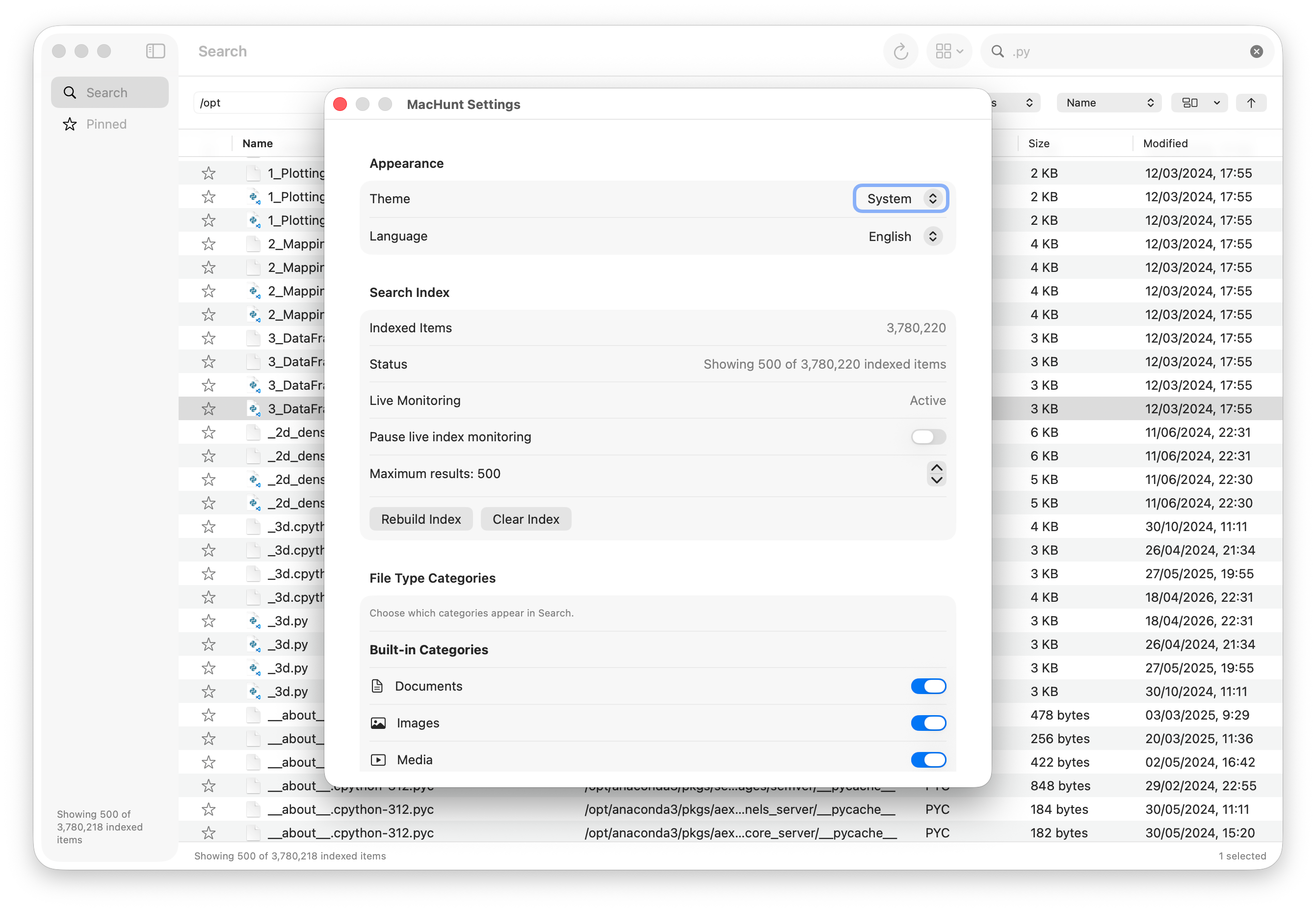
If you mainly want work documents, index that folder first and exclude caches or downloads you never search. Settings shows the index count, live monitoring, and file categories (see Figure 2). Check a smaller collection before widening the scope.
For a command-line full-disk build with progress, the README provides:
|
|
Quit the app before that CLI build, wait for completion, then reopen it. The command targets the whole filesystem; it is optional, not a prerequisite for trying a smaller folder collection.
Search, filter, then preview
Start with a distinctive part of the filename. Narrow the results by path, category, size, or date. The beta supports filename fragments, wildcard or regular-expression patterns, approximate spelling, and case-sensitive search. You can edit its built-in file categories or add your own.
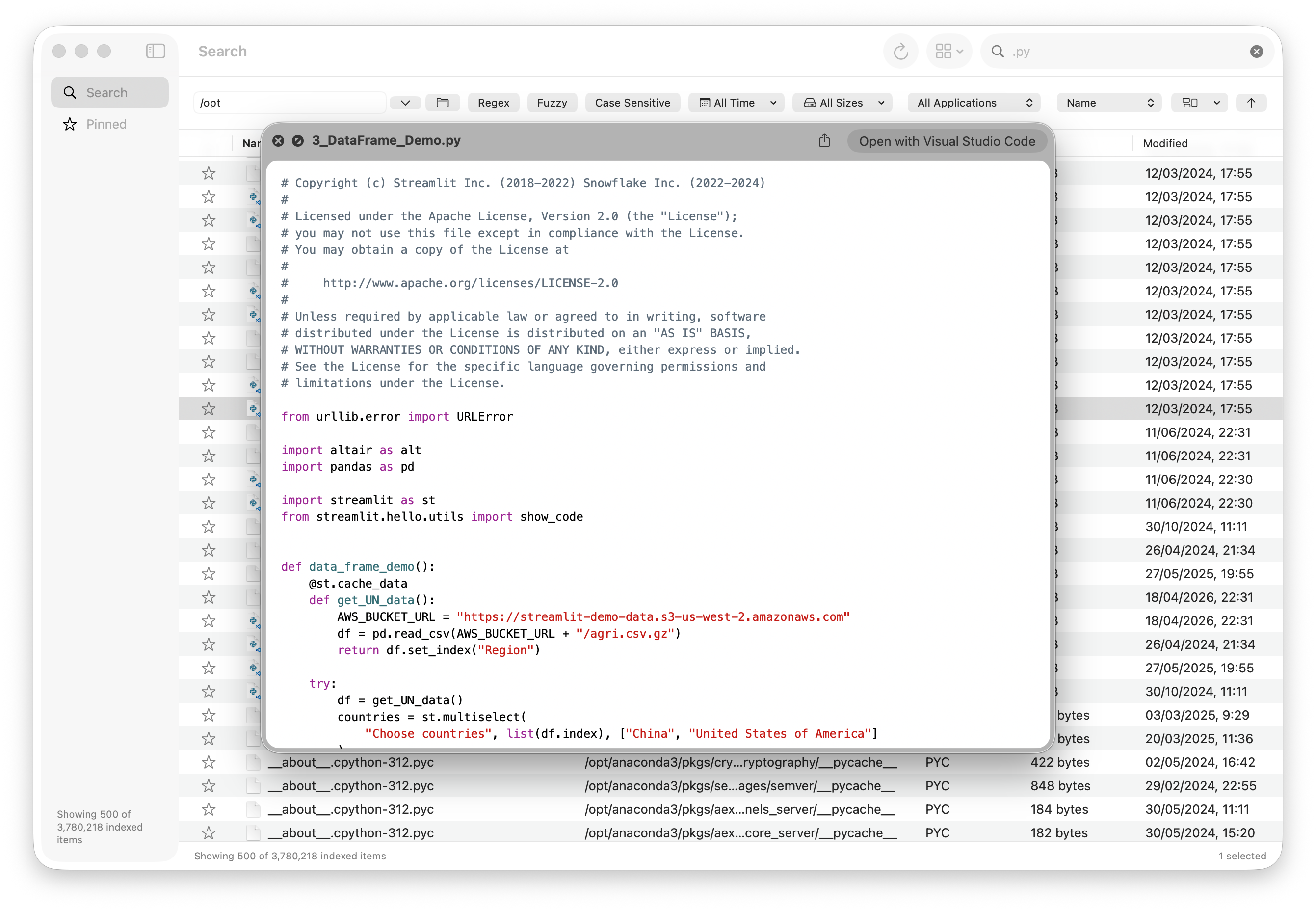
A useful workflow is to find a candidate, press Space for Quick Look, and reveal it in Finder only when you need its surrounding folder (see Figure 3). Files you repeatedly return to can be pinned across launches. Familiar columns, sorting, and multiple selection help when checking several files. Move to Trash is also available in the action menu, so check the path before using it.
Know what the index contains
MacHunt indexes metadata such as names, paths, dates, sizes, Finder tags, and cloud status. It does not index file contents. If the clue you remember is a sentence inside a document, filename search cannot substitute for a content-search index.
The index stays locally in ~/Library/Caches/MacHuntSwift/index.db. FSEvents maintains incremental changes, while configurable roots and exclusions let you control scope. A complete rebuild creates a replacement database before switching away from the previous completed index.
Online-only iCloud files are another distinction: indexing does not intentionally download their contents, but opening or previewing a result may cause macOS to fetch the file. “Local index” does not mean every result is already available offline.
Work through a missing-report example
Suppose you remember budget but cannot tell whether the report is in Downloads or a project folder. Search that fragment first and inspect the Path column. If many matches appear, restrict the search to your work directory and a document category. Sort by date or size to make unrelated exports easier to distinguish.
Select a candidate and press Space to check its title and content. Open it when ready, or Reveal in Finder to inspect nearby attachments. Pin a frequently revisited reference afterward. Clear filenames still matter when several projects or versions appear in the same search.
If a fragment returns nothing, try another mode deliberately. A wildcard can help when you remember the extension; fuzzy matching can help with partial letters. Change one condition at a time. Combining path, category, and size restrictions immediately can filter out the file you wanted.
Use the same index from Terminal
The embedded CLI shares the app’s index. These commands inspect its state, search Documents for budget as JSON, and search a filename pattern. A complete executable path avoids requiring a separate PATH setup:
|
|
Omit --json for ordinary reading; retain it when another script needs structured results. Quote *.swift so your shell does not expand it into local filenames before MacHunt receives it. These are searches against the existing index, not new full-disk scans.
Check scope before rebuilding
For a known missing file, check index roots, exclusions, hidden-file settings, and active filters. For an external disk, confirm it is connected and accessible in Finder. An indexed path does not prove that its volume is currently online or that a cloud file is downloaded.
Try the exact filename with simple settings before changing the index. If it still does not appear, inspect index status and directory permissions. Distinguishing an unscanned location from an over-filtered result is more useful than immediately rebuilding the entire disk.
For developers and command-line workflows
The bundled CLI shares the native index with the app and supports structured JSON output. Use the embedded executable by its full path unless you have deliberately added it to your shell’s PATH.
To build the native version yourself:
|
|
The source build requires Xcode with Swift 6.2 or later. The old root-level Tauri build is a different path; check which implementation you are building before following commands.
For a related Finder usability improvement, see displaying folder sizes. Current features and beta limitations are documented in the README.