PDF Page Extractor turns selected PDF pages into PNG images on Mac, with a preview window for page selection and a separate Finder action for whole-document export.
A PDF may be convenient to read but awkward to reuse when you need just one chart in a presentation or a few pages in a note. Screenshots work, but their crop and resolution depend on the display. PDF Page Extractor renders the chosen pages directly and keeps the source PDF unchanged.
Install the right components
The release provides two ZIP downloads: the preview app and a package containing two Finder Quick Actions. The downloadable app requires an Apple silicon Mac and macOS 13 or later; Intel users need to build from source.
Unzip the app and place PDF Page Extractor.app in /Applications or your personal ~/Applications folder. Unzip the workflow package too, double-click the .workflow files you need, and accept macOS’s installation prompt:
- Extract Page to Image… opens the preview and page-selection window.
- Extract PDF as Images exports every page without that window.
The published app is ad-hoc signed and not notarized. Follow the repository’s first-launch instructions if macOS blocks it. Its interface is currently English.
Select the pages before exporting
Select one or several PDFs in Finder, open the contextual menu, and choose Quick Actions / Services → Extract Page to Image….
The large preview helps confirm the document, while thumbnails provide selection (see Figure 1). Use Command-click for separate pages, Shift-click for a continuous range, or enter something such as 1, 3-5, 9 in Page and press Return. If several PDFs were selected, the file dropdown switches documents.
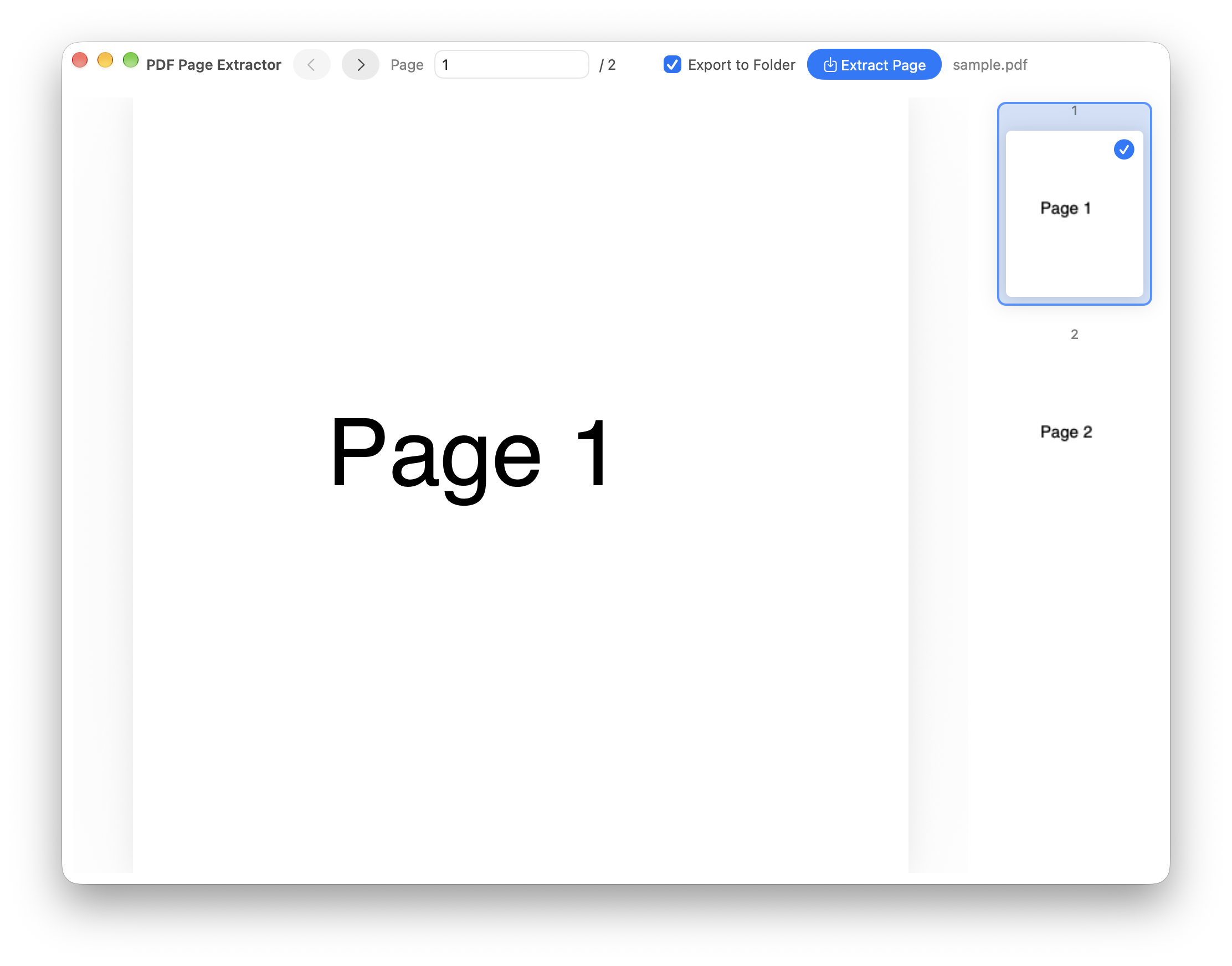
Browsing and selecting are different actions: the arrow buttons move through the preview, while thumbnails and the Page field determine the exported selection. For pages 2 and 5, Command-click those two thumbnails and press Extract 2 Pages. Finder reveals the resulting images afterward.
Understand the output
The app exports 200 DPI PNG files with a white background. Leave Export to Folder selected for a new folder beside the PDF, or turn it off to place the images beside the original. For example, pages 1–3 of report.pdf go into report_pages_1-3_images, with one PNG per page. Repeating an export adds a number rather than overwriting existing output. The PDF’s folder must be writable.
The output is a full-page raster image: text is no longer selectable or searchable, and the tool does not extract individual embedded images. Resolution and white background are fixed. Keep the PDF for editing its text or making higher-resolution artwork.
A worked example: two charts from a report
Suppose a twenty-page report has useful charts on pages 4 and 11. Select the PDF in Finder and open Extract Page to Image…. First check the document’s printed page numbers against the app’s page sequence. A cover and contents section can make printed “page 4” a different position in the file.
Command-click the two thumbnails, or enter their actual page positions in Page. Check the export button’s page count and leave Export to Folder enabled. The result then stays in a recognizable folder beside the PDF instead of mixing several PNGs into a busy attachment directory.
Open the exported images before putting them into slides. Inspect legends, small text, and page edges. Crop the PNG afterward if you only need the chart, keeping an uncropped export so you can revise that crop later. If your goal is the original embedded image object, use an image-extraction tool; this app renders the whole page.
What 200 DPI means in practice
DPI determines how many pixels represent a page. An A4 page measuring about 8.27×11.69 inches produces roughly 1654×2338 pixels at 200 DPI, depending on its actual PDF dimensions. This is more consistent than grabbing a reduced preview window, but tiny lettering can still look soft when enlarged to poster size.
PNG suits text, lines, and charts, but the export is a bitmap. To search the report, copy sentences, or edit a table, keep the original PDF and use text extraction or OCR where appropriate. Placing the PNG inside another document does not restore selectable text or working links.
Check requirements before exporting if you need transparency, editable vectors, or a specific resolution. This version uses fixed white backgrounds and 200 DPI rather than offering those controls. Keeping the source PDF makes it easy to try another method later.
Locate the output before retrying
The destination is beside the source PDF, not automatically Downloads. For a document on a read-only disk image or an unwritable shared folder, copy it to Documents or another writable location first. Check the folder and permissions before clicking Export repeatedly.
A suffix such as _2 means an earlier result was preserved. Before sharing, confirm which export folder you opened and whether its pages match the requested selection. Add a descriptive purpose to the folder name if useful. Modification time alone is less reliable than inspecting the actual pages.
For several PDFs, finish one preview-and-export cycle first, then continue once the page selection and destination make sense. Whole-document export is useful when you need every page. Converting an entire scanned book for two charts creates unnecessary files and makes checking the result harder.
Export a whole PDF separately
For every page, use Extract PDF as Images from Finder. This action requires Poppler:
|
|
The preview app and selected-page action do not need Poppler or Homebrew. That distinction is useful if you only want a few pages and prefer a smaller setup.
Opening the app directly without an input PDF produces No PDF file was provided. That message means the app expects a file argument; start it through the Quick Action with a PDF selected. Password-protected PDFs have no password-entry window. A large selection can temporarily make the preview appear unresponsive while pages render.
If an action is missing, check the enabled Finder extensions and Services settings described in the README. For translating a document while retaining useful structure, see Translate Document Quick Action.