This guide shows how to organize a photo library already exported on a Mac with Gallery Organizer. You can preview the plan before moving files, file confirmed camera media by capture month, and review Live Photos, duplicates, and uncertain dates separately. Both the browser and CLI support the two main sorting passes.
Why an exported library gets messy
Phones and cameras reuse names such as IMG_0001. After overlapping exports, the same name may refer to different years or to another copy of the same picture. A Live Photo often arrives as a HEIC still plus a MOV clip, sometimes with .aae or .xmp editing information alongside it. Sorting by filename can split those relationships; sorting by modification date can mistake the day of copying for the day of capture.
Gallery Organizer first files camera media it can identify, then checks the screenshots, recordings, saved images, and uncertain files left in the batch. It works on already exported folders on macOS. Export from your phone or Apple Photos first, and do not point it at a Photos library package.
Prepare a batch and a backup
Keep a separate copy of the original export and start with a small batch you know well. Edit the project’s config.ini to set the library root and destinations. The default layout is easier to understand as a journey through two stages:
|
|
These are possible outputs, not folders every run will create. Media with a known capture date normally goes under 2024/2024-06/. A same-name conflict can add a day-level folder rather than overwriting either file. Set language = zh in config.ini if you want Chinese reports and newly created category names; existing folders are not renamed.
Preview the first pass in your browser
From the project directory, start its local web service:
|
|
Open http://127.0.0.1:8000/ and keep Terminal open. Choose the main organizer, enter the full path to Incoming/Stage0/Batch A, and select Scan / Dry Run. Read the proposed destinations, filename collisions, Live Photo pairings, and items flagged for review. Only then select Apply changes. The tool scans again before applying. After a successful pass, the whole batch moves to Stage1; files still needing classification remain there.
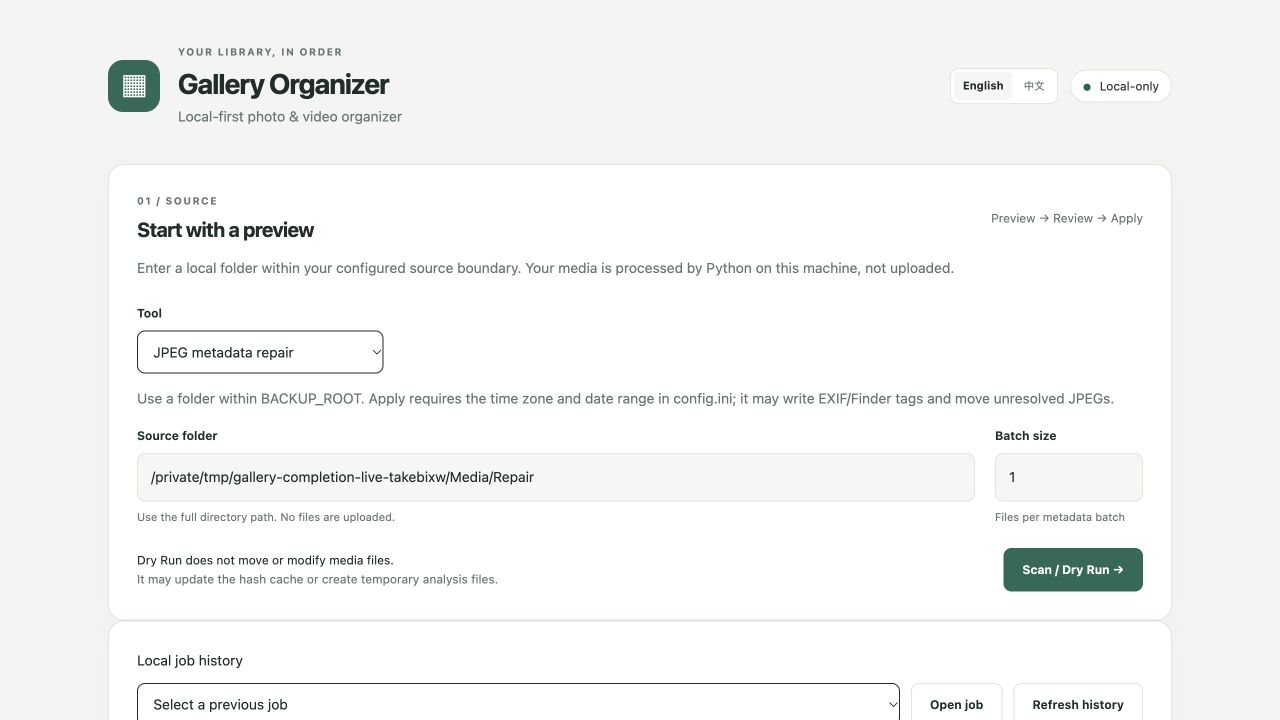
The browser can switch between English and Chinese, while detailed reports follow config.ini. Job history helps you inspect a previous run, but an interrupted job does not resume itself and there is no whole-batch Undo. Check the report and real file locations before restarting.
Run the same two passes from Terminal
The CLI is useful when you have a regular export folder and want to process batches one at a time. Replace the sample paths below. The first command in each pair previews; the command with --apply moves files:
|
|
Pass one puts confirmed photos and videos in Gallery/Main/year/year-month/ and tries to keep a Live Photo still, its movie, and identified companion files together. Pass two inspects what remains in Stage1: screenshots and screen recordings go to Screenshots, saved or downloaded images to OtherMedia, and unresolved items to NeedsRepair. Camera media confirmed only on pass two goes to SortedFromUnsorted.
For example, IMG_0100.HEIC, IMG_0100.MOV, and IMG_0100.HEIC.xmp may end up together under Gallery/Main/2024/2024-06/. An .xmp whose owner cannot be identified should stay available for review. Camera thumbnails such as .thm and preview clips such as .lrv can also be companion files, so keep unfamiliar sidecars until the relationship is clear.
Configure a root you can recognize
For a library on an external disk, start by changing backup_root to a dedicated folder on that disk and keep the child paths at their defaults. gallery_root = Gallery is relative to that root; main_library_root = Main is relative to Gallery. These settings form a hierarchy rather than three unrelated destinations.
Put the test export in Incoming/Stage0/Batch A and select that batch, not the entire Stage0 parent. The configured root also bounds allowed source and destination paths. In config.ini, spaces do not need quotes; in Terminal, retain the quotes around folder arguments. Understand this structure before customizing category destinations.
The Python packages in requirements-api.txt support the local website. They do not necessarily supply every external media-reading executable. If a scan identifies a missing tool, inspect [tools]: an empty setting searches the system, while an explicit setting should point to the executable itself. A directory containing a tool is not the executable path.
Review a representative trial batch
Choose ordinary photos, one Live Photo pair, a few screenshots, and an overlapping export copy. After Dry Run, check capture months, photo/video pairings, remaining screenshots, and which duplicate copy will be retained. Investigate a clearly wrong date before applying the plan.
After pass one, preview pass two on the same batch under Stage1. The scripts are separate operations, not an automatic end-to-end pipeline. After applying, open sample photos and play a video in their destinations. Read why unresolved items were left aside. A clear classification matters more than an empty incoming folder.
Treat JPEG date repair as a separate investigation. A copied old photo may have a recent filesystem date, but that does not justify inventing its capture time from a plausible filename. Confirm the time zone, eligible range, and months reserved for manual review. Keep the repair backups and reports. NeedsRepair is a place for further judgment, not a bin of disposable material.
Handle duplicates and doubtful dates separately
The main pass sets confirmed duplicate copies aside. An optional tool checks duplicates already in the main library. Byte-identical copies are different from similar-looking photos: bursts, edited versions, and exports in different formats can all be worth keeping. Browser image comparison is off by default; enable it when visual review helps. First-time HEIC previews can take longer.
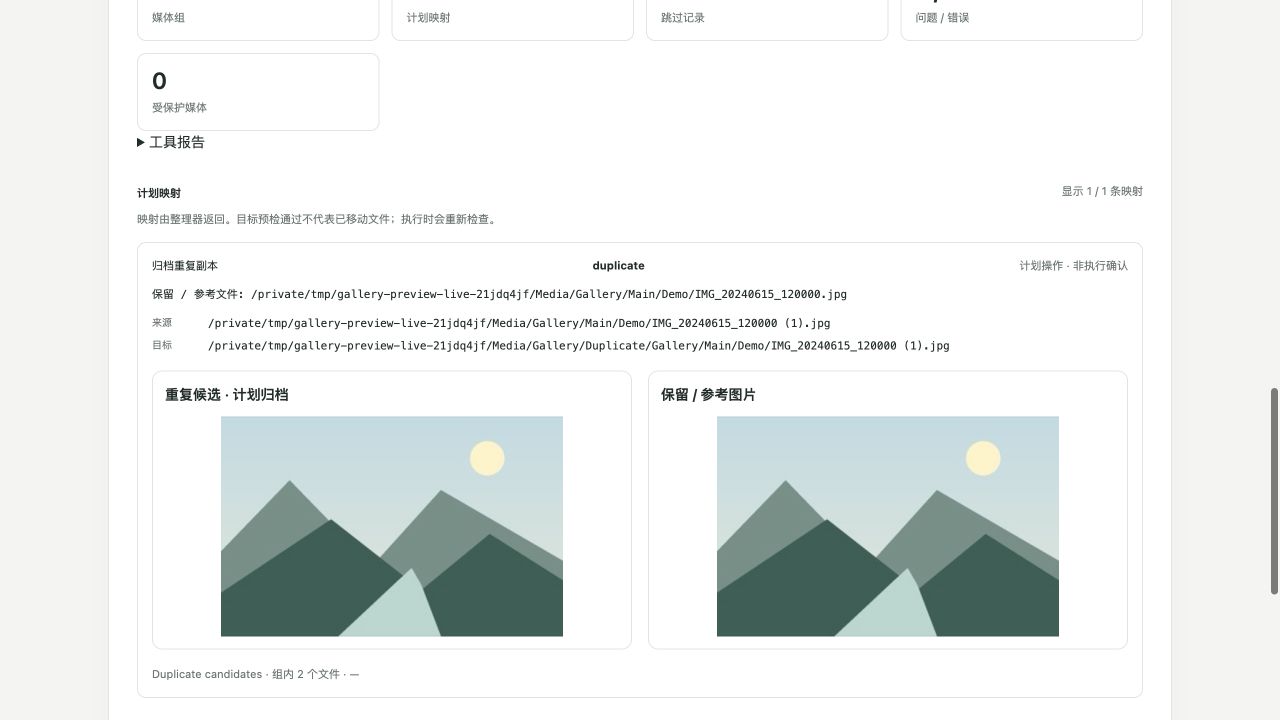
JPEG date repair is another separate operation. Confirm its time-zone offset and eligible date range in config.ini before allowing writes, and keep its backup and report. Only one browser or CLI job can apply changes at once. To check one photo’s capture fields first, use View Media Info. The project README documents every path setting and optional tool.