SpotlightShell is a small native macOS 26+ app that exposes a Run Shell Command action to Spotlight and Shortcuts.
For a short command such as checking the current directory or producing a small text result, opening Terminal can feel like an extra step. SpotlightShell supplies a command field at runtime instead of maintaining a fixed catalogue of predefined commands.
It uses ordinary user-level shell execution. It does not translate a natural-language request into a command, grant administrator rights, or make the command itself harmless.
Install and let macOS discover the action
A DMG is available in Releases. Follow the release instructions, open the installed app once, and allow macOS time to discover its App Shortcut.
Open Spotlight with Command-Space, use Command-3 to filter Actions, and search for Run Shell Command or SpotlightShell (see Figure 1). If the action is missing, check Shortcuts → Apps → SpotlightShell and reopen the app before troubleshooting further.
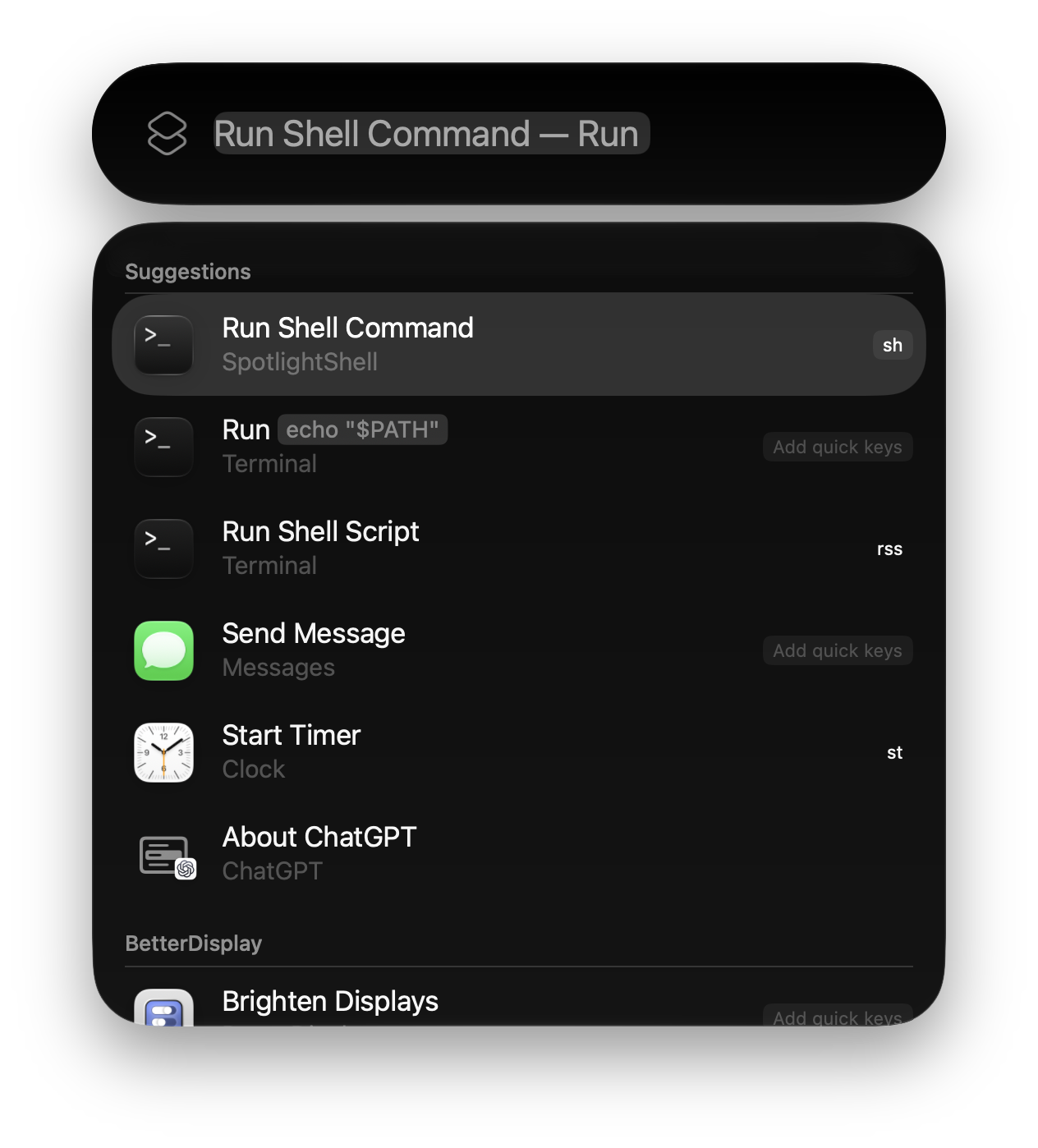
To call up the action with sh, find it in Spotlight, click Add quick keys beside it, type sh, and confirm. Then use Command-Space, type sh, and enter your command.
Start with a harmless command
Enter a command whose output you recognize:
|
|
Run it in the background and inspect the report. The result includes stdout, stderr, and the exit status, rather than treating every nonempty message as success (see Figure 2).
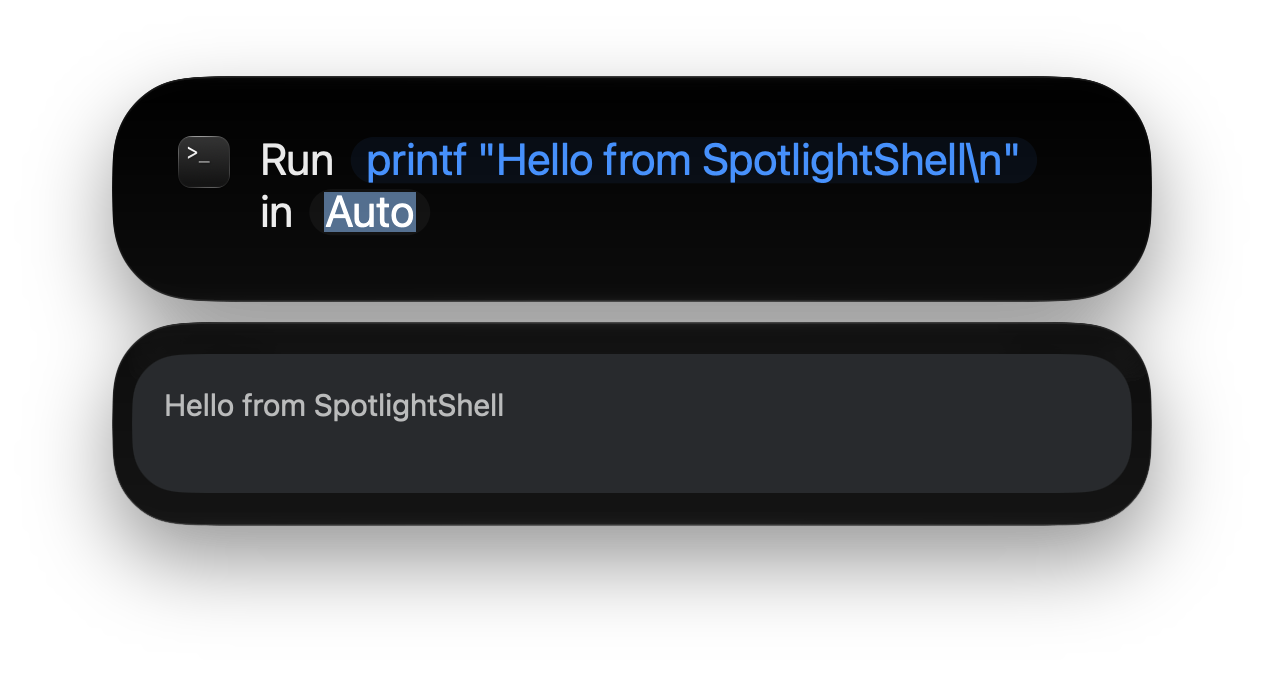
You can also try printf 'example error\n' >&2; exit 7: it produces an error message and exit status 7. This makes the difference between “printed something” and “succeeded” visible. In Shortcuts, the action returns text for Show Result; a workflow that branches on failure should inspect its status.
Choose Background or Terminal deliberately
Background mode is for short, noninteractive commands. It runs login zsh with no interactive stdin, captures stdout and stderr separately, and enforces a 20-second execution limit. Each stream retains up to 64 KiB and reports truncation. The visible dialog can be shorter still.
Commands needing a terminal, interactive input, or a longer session belong in Terminal mode. This opens Apple Terminal and hands the command to a new session. Successful handoff means Terminal received the request, not that the program finished successfully; its output stays there.
The working directory is a separate parameter. Use an absolute path, ~, or ~/…, without surrounding shell quotes in the directory field.
Fill the command and directory separately
To inspect a project under Documents, put ~/Documents/My Project in the working-directory field and pwd; ls in Command. The directory is a path parameter: spaces need no surrounding quotes. The command is shell source. Do not put a cd command or a $HOME expression into the directory field.
pwd prints the starting location before ls lists its contents. Keep this check while learning the action. An empty directory defaults to your home folder. Use a complete path rather than assuming Spotlight inherits the directory you last visited in Terminal.
Quoting inside the command is different. A command that opens a filename containing spaces still needs normal shell quoting for that argument. The directory field says where to start; Command says what zsh should do. Keeping those responsibilities separate makes mistakes easier to locate.
Let Terminal handle interaction
Try printf 'hello\n'; tty in Terminal mode. The text appears in a new Terminal window, and tty identifies its terminal device. A continuously updating program such as top also belongs here; press q in Terminal to quit. A command that prints once in Background is not necessarily suited to long-running monitoring.
macOS may ask whether SpotlightShell can control Terminal on the first handoff. This consent is used to open a terminal and send the command; Background does not need that handoff. If you previously denied it and Terminal fails to open, inspect Automation permissions before repeatedly submitting the command.
After handoff, Terminal lives independently of SpotlightShell. Enter passwords or other interactive responses there. A handoff-success report means Terminal received the command, while completion and errors remain visible in its window. If transport times out, inspect Terminal before retrying so you do not accidentally run the same operation twice.
Save a frequent check in Shortcuts
For a recurring short command, create a Shortcut containing SpotlightShell’s Run Shell Command action, set the directory and mode, and add Show Result. A fixed folder-listing check then avoids retyping the path each time. Begin with a short, read-only operation before adapting the flow to everyday work.
Do not use the presence of output as your success condition. A command can print text and fail, or succeed silently. If another step will act on files, inspect the exit-status text first. Timeouts and truncation notices also require attention before trusting the report as a complete result.
Use Terminal for a full, long log. Background works best as one input followed by a short result, while Terminal supports continuing interaction. Spotlight supplies a quick entry point; choosing the right destination keeps the workflow understandable.
Why commands can behave differently
Background mode reads login-shell setup but does not load interactive .zshrc configuration. Aliases, functions, or PATH changes defined only there may be unavailable. Terminal mode uses an interactive login shell and a TTY.
Choose the mode by asking whether the command needs keyboard input or should keep running. Use Terminal for those commands; use Background for a short result.
The app does not upload commands, but shell history, Terminal restoration, Spotlight, Shortcuts, and invoked programs can retain information according to their own settings. It runs with the current user’s abilities, so review a command before submitting it.
For installation, signing, working-directory handling, and output limits, see the project README. For a different Finder automation pattern, Auto Filename Helper shows a Shortcut handing results to a native app.