View Media Info is a native Mac utility for reading the technical and descriptive information inside photos, videos, audio files, and Live Photos without changing the originals.
Finder’s Get Info is convenient for basic properties. A media question often goes further: which codec is this movie using, when was the picture captured, or does this HEIC still have its matching Live Photo video? View Media Info collects those answers into a compact summary with a separate details view.
Install the app and metadata tools
The app requires macOS 26 or later. Download the DMG from Releases, drag the app into Applications, and open a media file with File → Open Media… or ⌘O.
ExifTool is required for image and audio metadata. Optional ffprobe adds richer video and audio-stream information. If you use Homebrew, both can be installed with:
|
|
The app looks in standard Homebrew locations. Installing ffmpeg supplies ffprobe; it is not necessary to find an unrelated app with a similar name.
Releases are ad-hoc signed and not notarized. Check the project’s first-launch guidance if macOS blocks the app.
Read the summary before opening Details
The first screen shows a preview and the most relevant fields for the media type. A photograph may show its dimensions, capture date, and camera; a video may add frame rate, duration, and codec. Details expands grouped information, and Copy Results copies what is currently displayed.
Figure 1 shows a Live Photo summary. The application reports the still image’s dimensions while presenting its motion component when a matching pair is available. The app also recognizes common Android motion-photo metadata and embedded video.
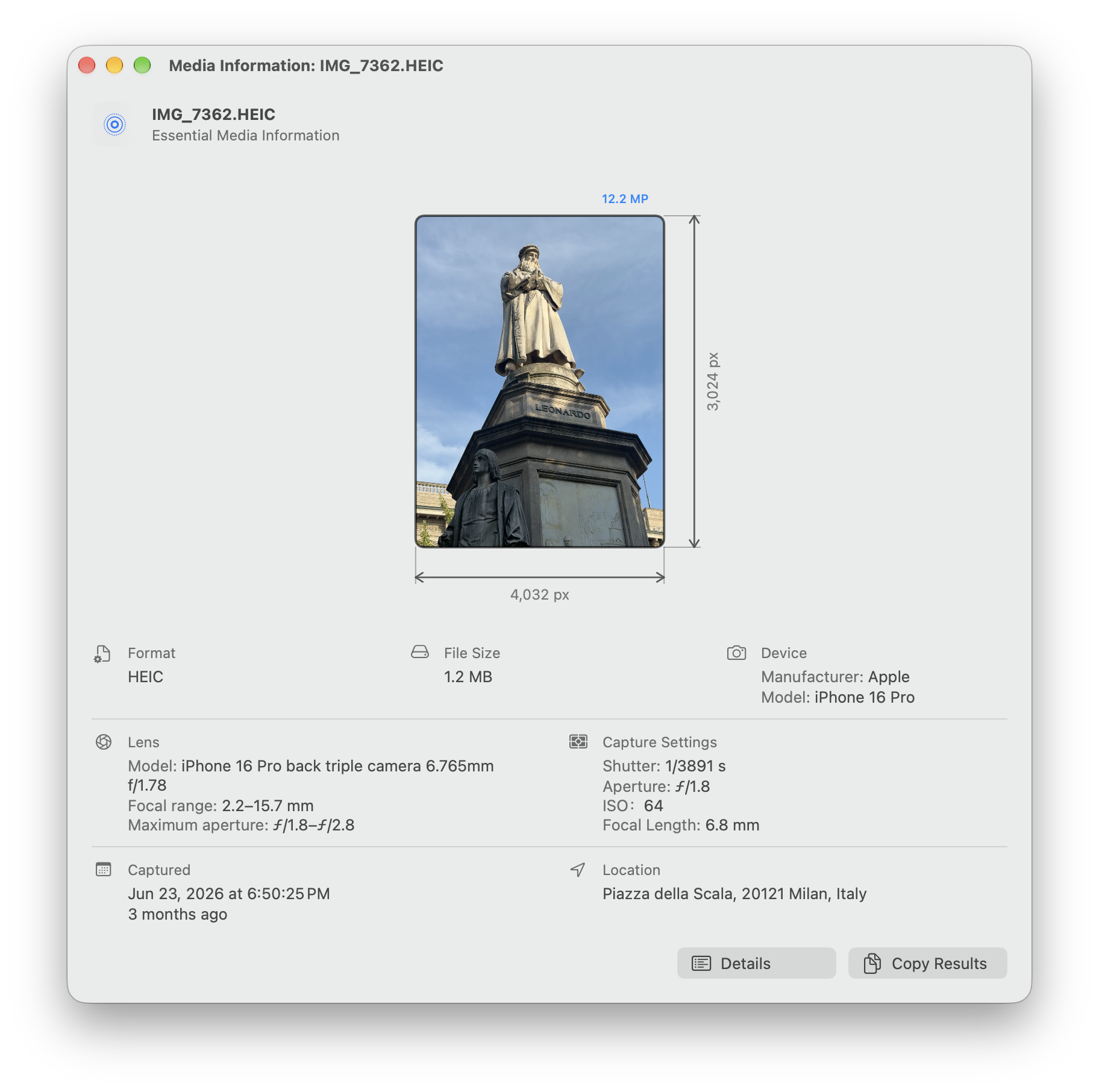
Press Space to open or close system Quick Look. This is useful when you want to check the actual media alongside its metadata, rather than infer its contents from a filename.
Keep Live Photo companions together
An exported Apple Live Photo commonly has a still image and a companion movie. The app matches their ContentIdentifier in the same folder. Renaming one half, separating folders, or losing metadata can prevent a useful pairing.
The details view is also useful for HEIC and other image formats (see Figure 2). Available fields can include camera and lens information, exposure settings, colour properties, XMP/IPTC information, and GPS data.
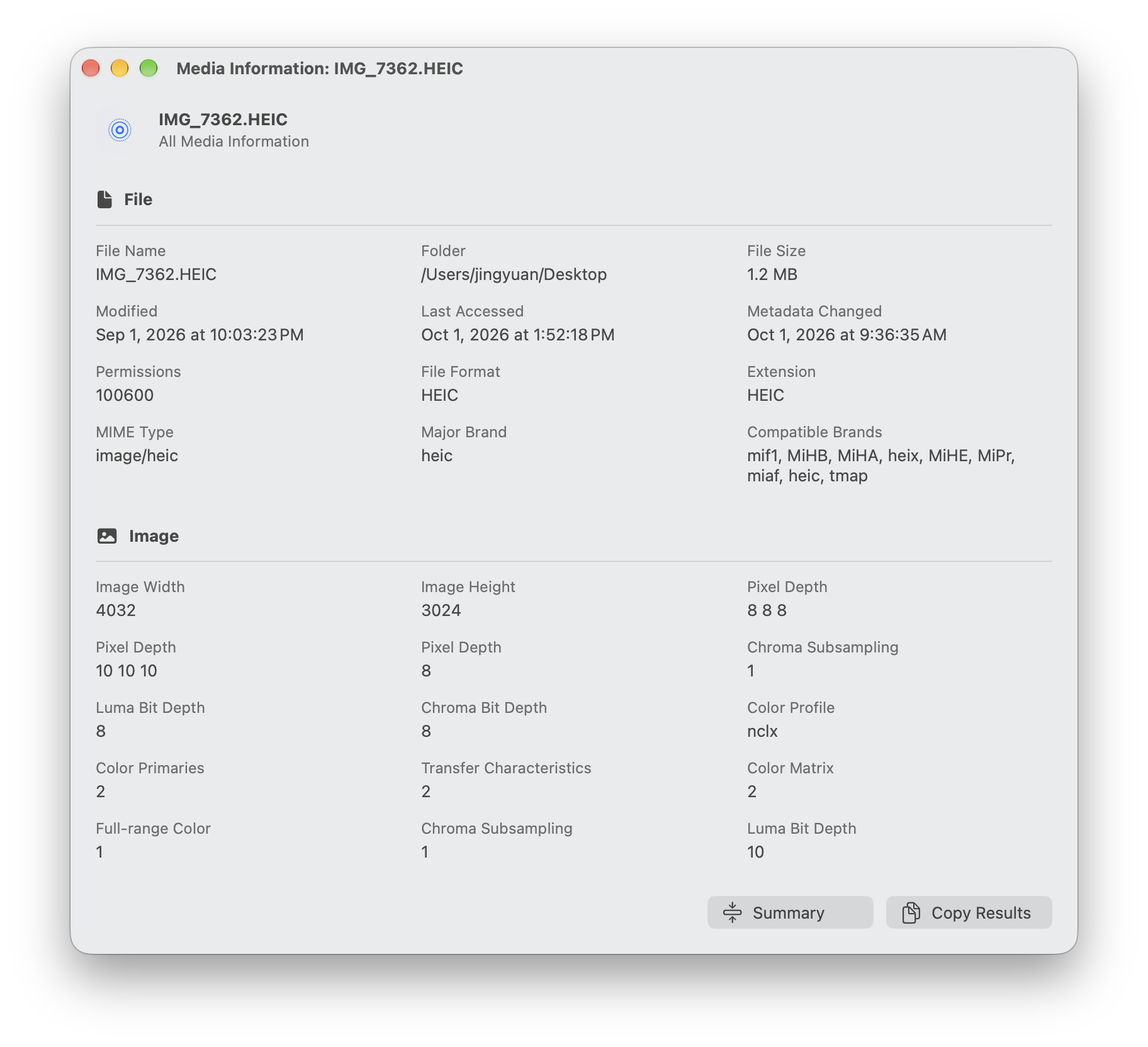
A missing field is not proof of a fault in the app: screenshots, edited exports, and messaging apps may not retain the original metadata. Stored dimensions and display orientation can also describe different aspects of the same media.
Check a video or audio file at a glance
Before editing a video, check its dimensions, frame rate, codec, duration, and audio stream (see Figure 3). If a MOV from someone else will not play, the codec and audio format tell you more than changing its filename extension.
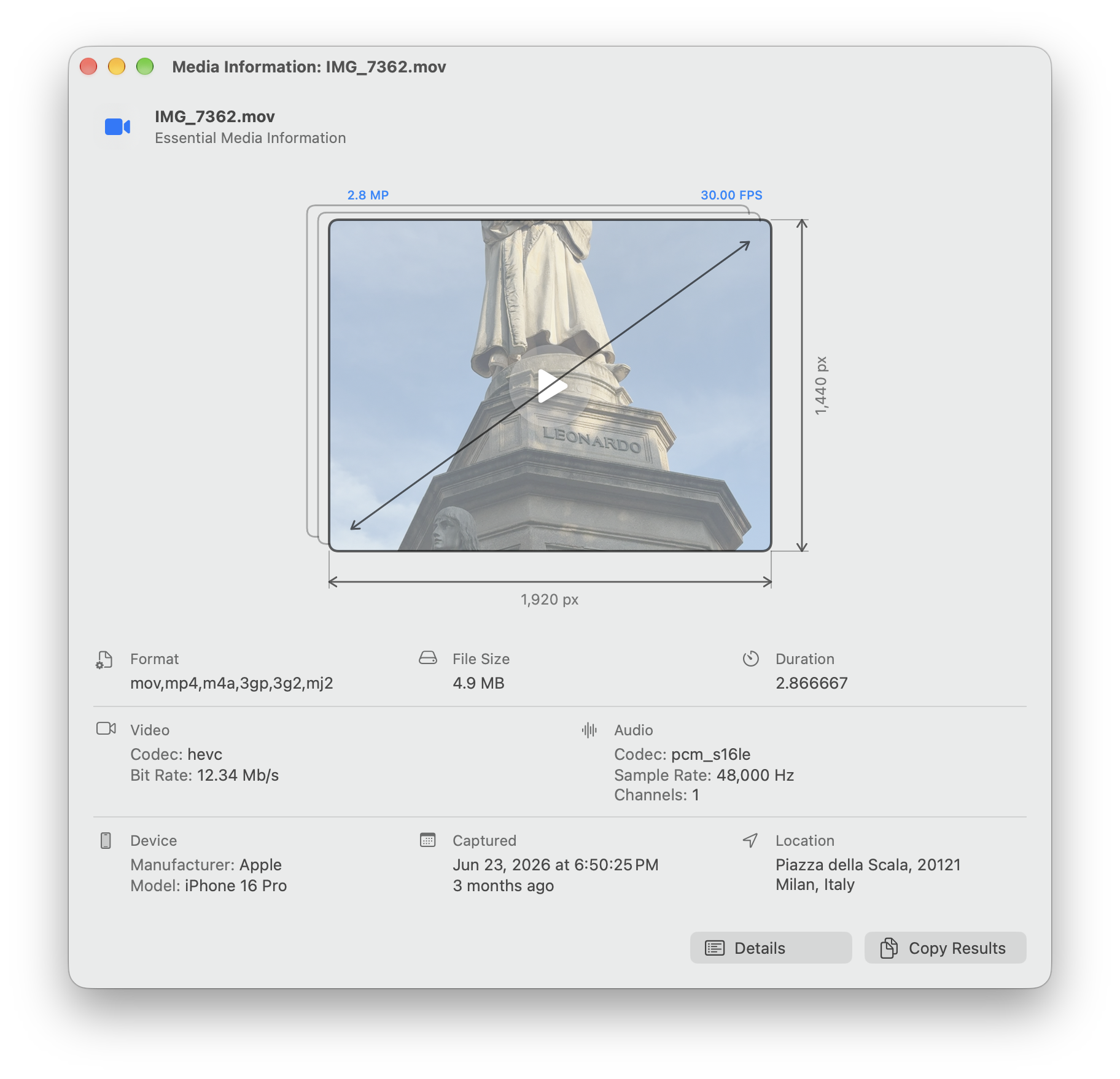
Audio can show artwork, track and album names, duration, sample rate, bit depth, and channels (see Figure 4). Fields absent from the file cannot appear in the summary.
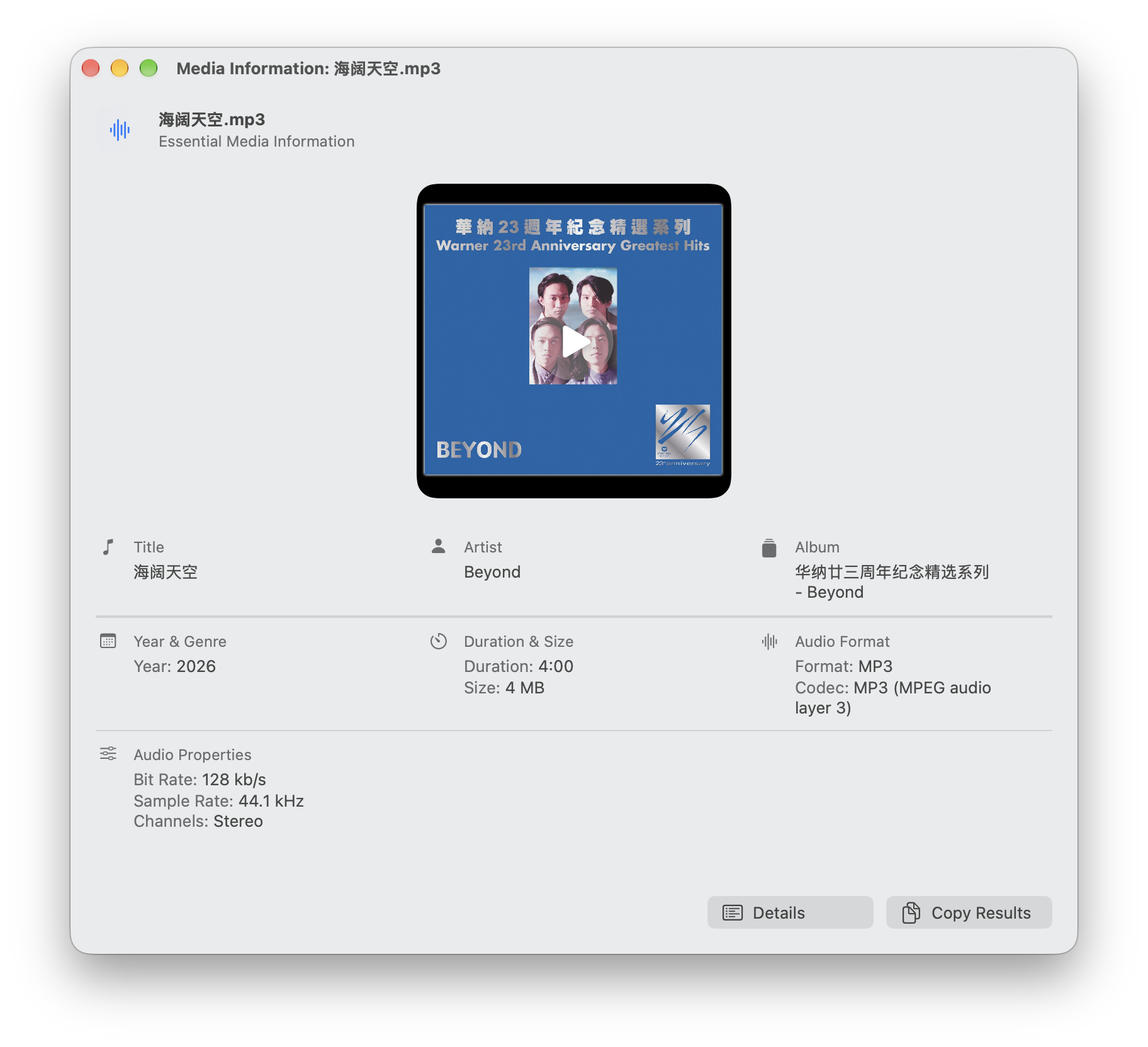
Use the optional Finder Quick Action
The release includes a separate Quick Action ZIP. Unzip it, open View Media Data.workflow, and install it. Then select a file in Finder and choose Quick Actions → View Media Data.
The Quick Action includes its own app copy under ~/Library/Services. It works independently of the app in Applications, which is useful for Finder access but also means updating one copy does not automatically replace the other.
Which date are you trying to read?
Filesystem creation and modification times can describe a different event from the capture time stored inside media. A photograph taken in 2020 and exported to another Mac this year may have recent filesystem dates while retaining an original camera timestamp. In Details, read the field name before deciding what that date means.
For travel photos, compare capture fields with the device information and a known part of the trip. A camera set to the wrong time zone can write a wrong timestamp. Video-container dates can also involve UTC and local display. The app follows your Mac’s regional settings, so differently formatted dates on two Macs do not by themselves prove that a file changed.
Choose the relevant view before using Copy Results, which copies the information currently shown. A summary may be enough to explain dimensions and format; expand Details for a missing-field report. After pasting, review whether location, device details, or source paths are relevant to the recipient’s question.
Investigate a Live Photo with no motion
Put the still image and its corresponding MOV in the same folder and reopen the photo. Matching uses ContentIdentifier metadata, not merely similar names. Renaming an unrelated movie to match the photo cannot create that relationship. Repeated export names make provenance especially useful.
If the still works but motion does not, open the MOV separately to check playback, then inspect its identifiers in Details. An image sent through messaging may have lost the pairing information. A screenshot or an ordinary JPEG alone cannot restore missing motion. Determine whether the problem is a missing file, missing identifier, or playback before re-exporting.
Read video orientation separately from stored dimensions. Portrait footage can store one pixel arrangement and use a display transform to rotate it. The app handles recognized display orientation, while raw width and height may still differ from what you see. That difference alone does not establish corruption.
Playback and metadata tools are separate
macOS playing a file does not mean every metadata tool is installed. ExifTool reads image and audio properties, while ffprobe adds video and stream details. If fields are missing, inspect dependencies and compare a known original containing metadata. First establish that the tools can read it, then investigate what the file actually stores.
Remember the independent app inside the Finder Quick Action. If the standalone app was updated but the action still behaves differently, update the workflow too. Language changes take effect on the next app launch; quit and reopen after selecting a language to apply it consistently.
Reading metadata does not certify it
The app does not edit files, maintain a metadata database, or upload the media. Resolving GPS coordinates into a place name can use Apple system services; the original coordinates remain available if that lookup fails.
Metadata can be missing, stale, or edited. A creation date in a container is not always the camera’s original capture time, and a blank location is not a guarantee that a file contains no identifying information.
For organizing a whole exported library, see Gallery Organizer. View Media Info is the narrower companion for checking one file before deciding what to do with it.