This post introduces Text Tray, a small open-source macOS app that gives copied or passed-in text a temporary place to be read, edited, cleaned up, translated, saved, or copied again.
I have open-sourced Text Tray, a tiny macOS utility for a very specific kind of everyday friction: you have some text in the clipboard, but opening Notes, a full editor, a browser AI tool, or a translation app feels heavier than the job deserves.
The project is here: Jingyuan-Zheng/TextTray.
The Kind of Problem It Solves
There is a category of text work that is too small to become a document but too annoying to do in the original app.
Maybe a copied email is too narrow to read comfortably. Maybe a PDF paragraph comes out with broken line endings. Maybe you need to count characters before submitting a form. Maybe you only want to rewrite a reply, extract the dates, translate a paragraph, or save a short snippet as Markdown.
Text Tray is built for that middle space. It is not a note-taking app, and it is not a clipboard manager. It opens a focused editor for the current clipboard or supplied text, lets you do the small operation, then gets out of the way.
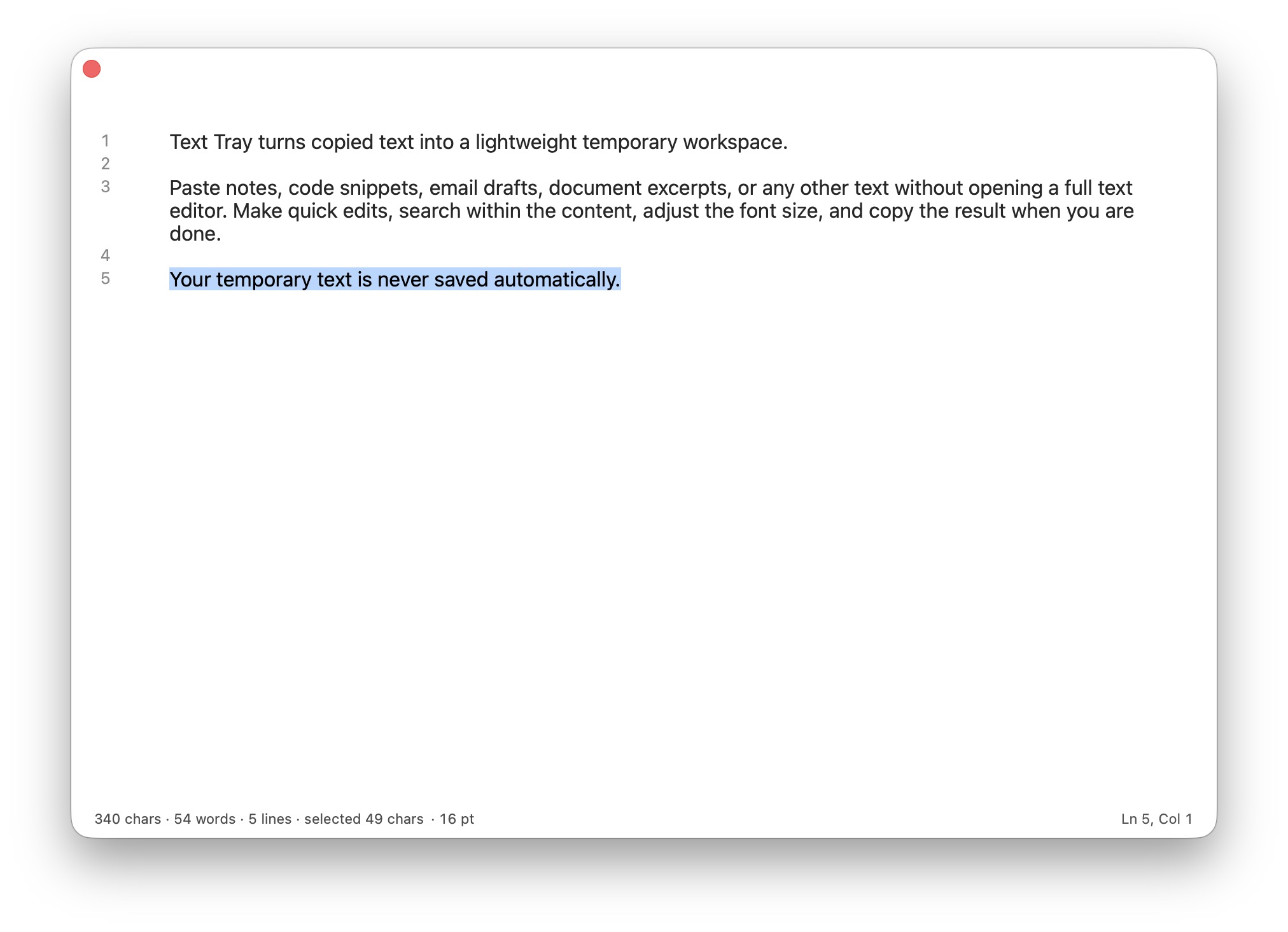
Temporary by Design
The most important design choice is that Text Tray treats text as temporary.
It does not keep a clipboard history, monitor the clipboard in the background, auto-save the editor content, or clear the system clipboard when it closes. Preferences such as language, font size, line numbers, word wrap, statistics, and pinning are saved, but the text itself is not stored.
That makes the tool feel closer to a scratch tray than a permanent notebook. You can paste a contract clause, a message draft, or a copied table into it without wondering whether you just created another long-lived record to clean up later.
Reading, Editing, and Basic Counts
The main window is intentionally plain: a text view, line numbers, word wrap, adjustable font size, and a compact status area.
The status area shows useful small signals such as character count, word count, line count, selection length, font size, and cursor position. Those are boring features until you need them, which is exactly why I wanted them nearby instead of hidden inside a heavier editor.
The window can also stay on top of other apps, which is useful when copying from one place and editing in another.
Cleanup for Text That Comes from PDFs
One of the first practical cleanup actions is Repair PDF Line Breaks.
Text copied from PDFs often preserves visual line breaks instead of logical paragraphs. Text Tray includes a local cleanup pass that joins ordinary paragraph lines while protecting common list shapes such as bullets, numbered items, and indented blocks.
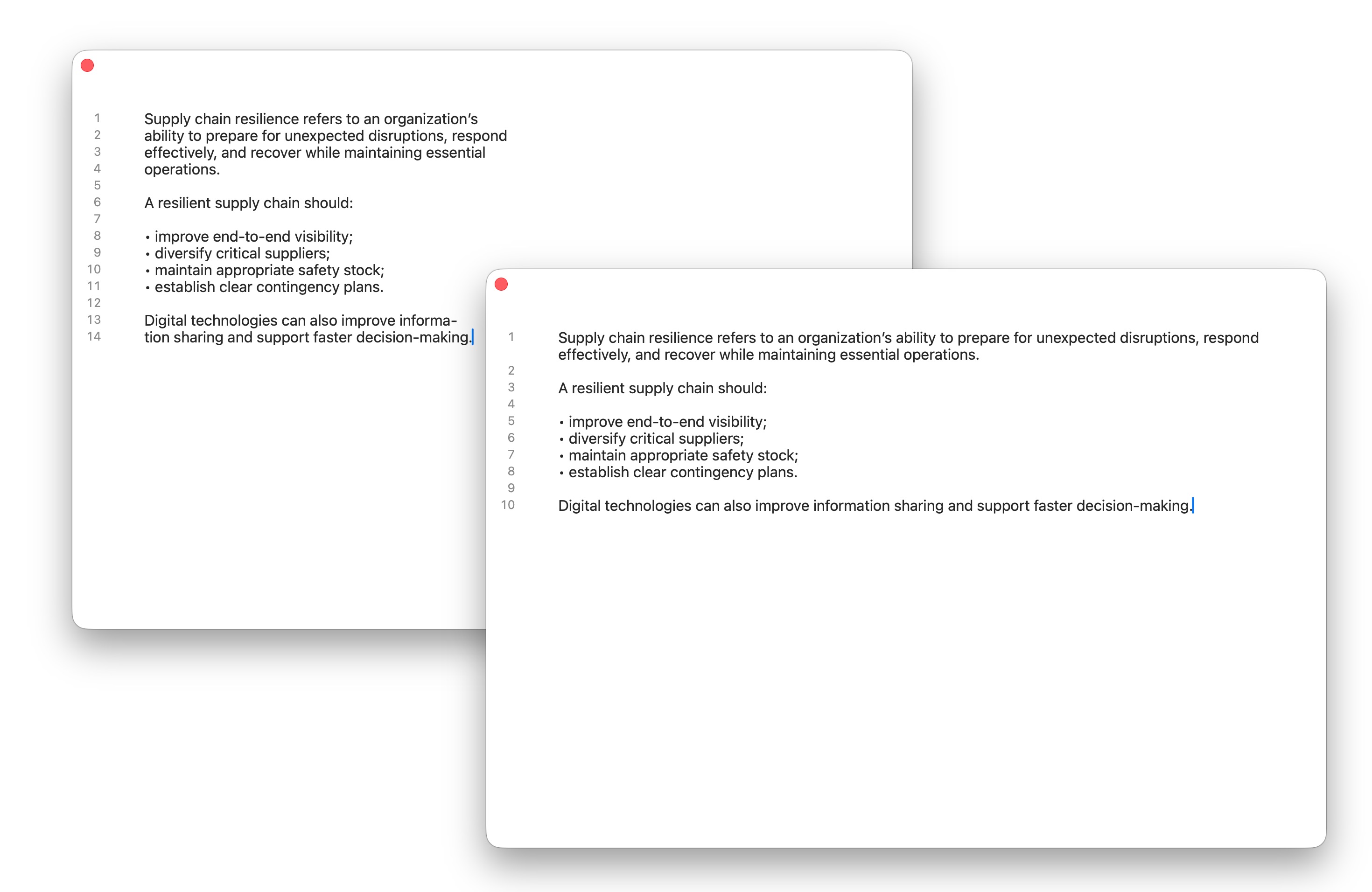
There are also smaller cleanup actions for trimming leading and trailing whitespace, removing extra blank lines, normalizing line endings, and removing trailing spaces on each line. The app keeps one-step undo for the last processing operation, which is enough for this kind of quick utility without turning the interface into a workflow editor.
Smart Actions Without Leaving the Window
Text Tray also has an AI menu for lightweight structure extraction and rewriting tasks. The current actions include extracting tasks, dates, amounts, and contacts, summarizing requirements, explaining text, checking risks, drafting replies, and organizing content as a checklist or table.
On supported systems, these actions use Apple’s Foundation Models framework. The app checks whether the system model is available and shows a clear message when Apple Intelligence is not enabled, the device is not eligible, or the model is not ready.
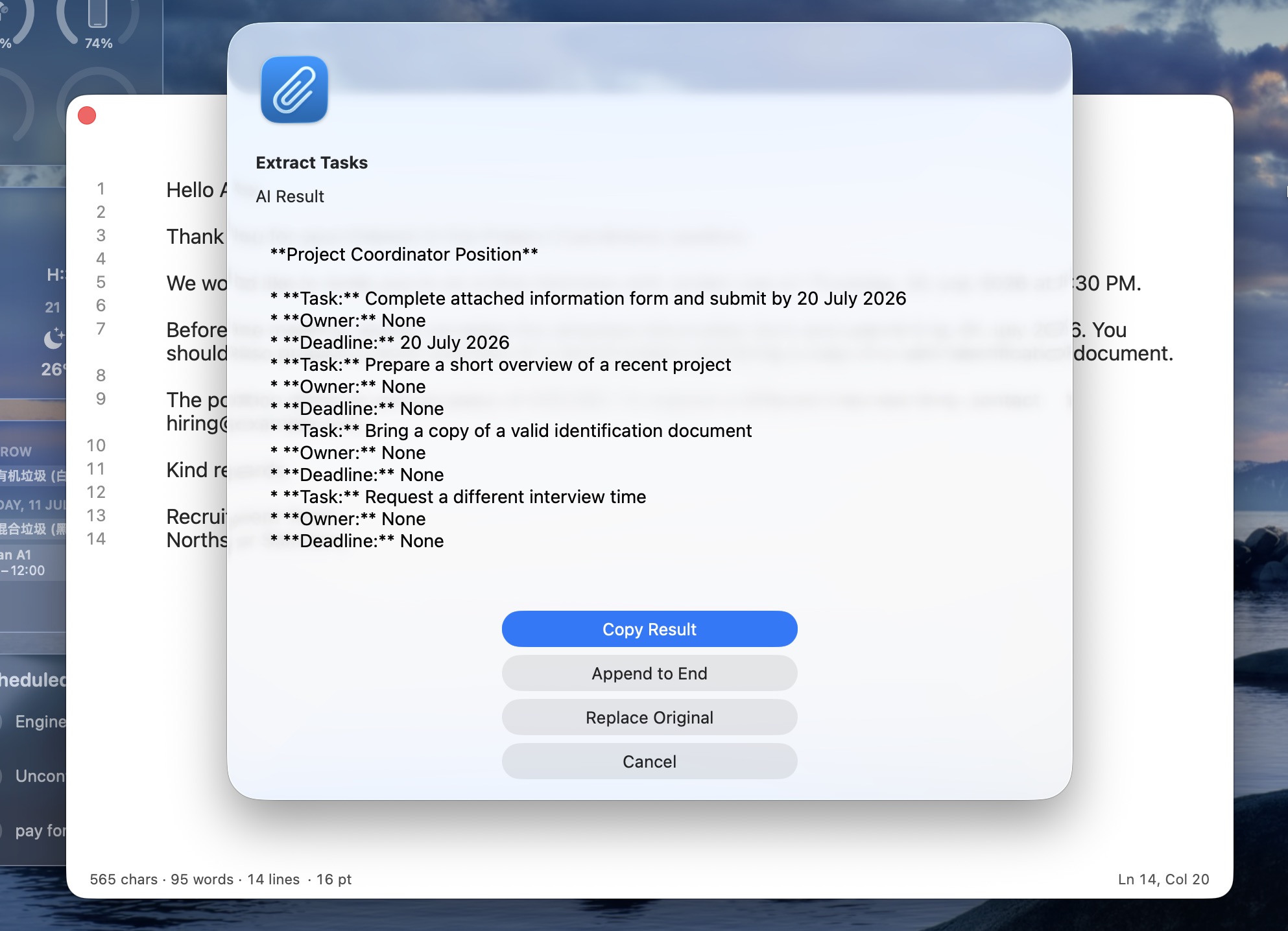
This is deliberately not trying to replace a full AI chat app. The point is speed: if the text is already there, the next action should be one menu command, not another round trip through copy, paste, prompt, copy back.
System Writing Tools and Translation
Text Tray also integrates with macOS system Writing Tools when available, so the editor can participate in the same system-level writing assistance used by other native apps.
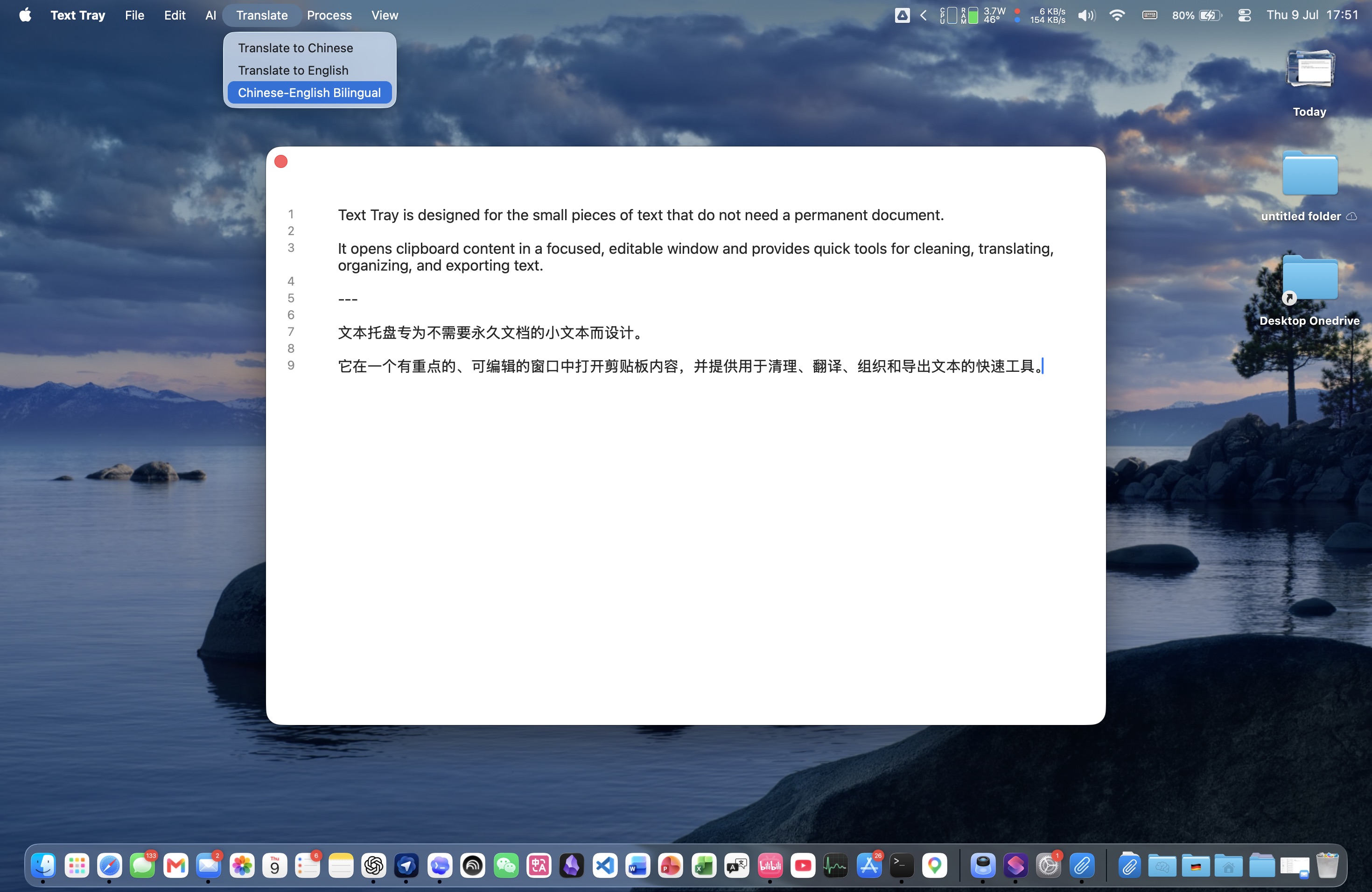
For translation, it uses Apple’s Translation framework on supported macOS versions. It can translate to Chinese, translate to English, or produce a Chinese-English bilingual version.
The base app targets macOS 13 or later. The newer Apple Intelligence and system translation actions depend on the macOS versions and device support required by Apple’s frameworks, so older Macs still get the core editor, cleanup, counting, copy, save, and print features.
Saving When Temporary Text Becomes Useful
Most tray text can disappear after copying, but sometimes a scratch note turns into something worth keeping.
Text Tray can save the current text as .txt, .md, .json, .csv, .html, .swift, .py, .js, or a custom extension. The default file name uses a timestamp such as Text_YYYYMMDDHHMMSS.txt, which is simple but avoids accidental overwrites.
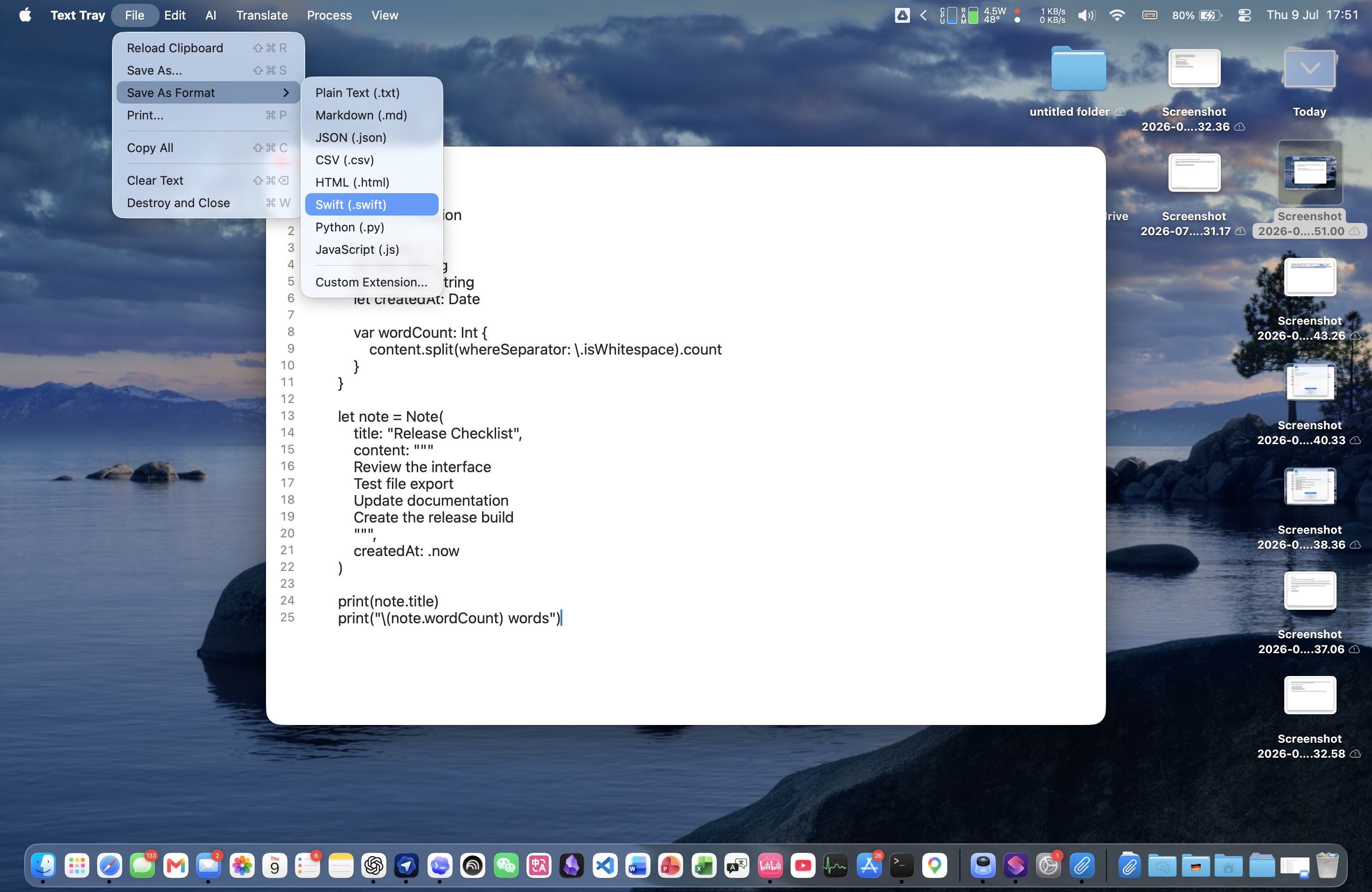
There is also a print action, mostly for the occasional case where temporary text needs to leave the screen.
Launching from Shortcuts
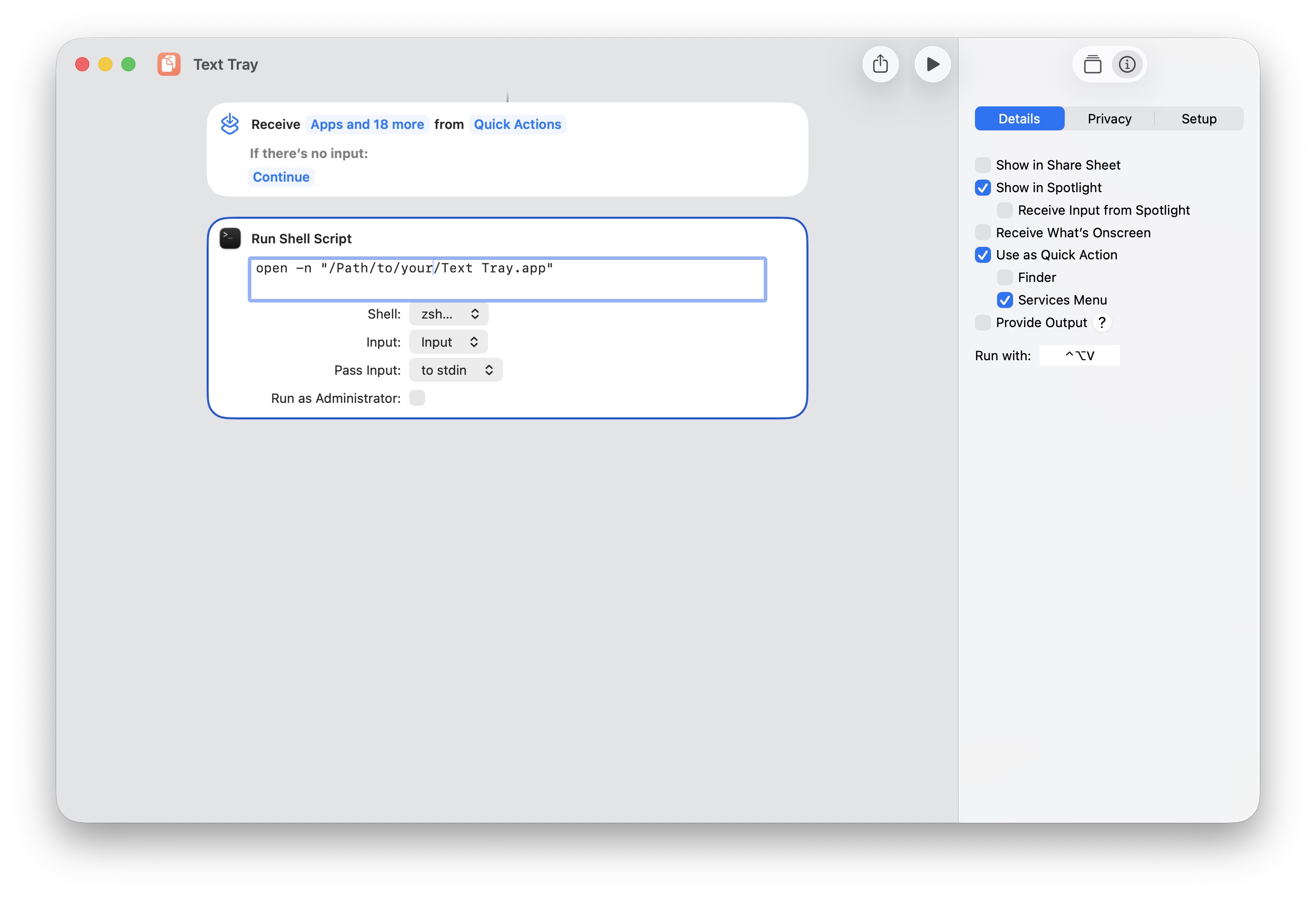
The app can be launched normally, but it is more useful when wired into macOS Shortcuts or another automation.
For a basic launcher:
|
|
To pass text directly through standard input:
|
|
The source is intentionally small: the app is built with Swift, AppKit, SwiftUI, Apple’s Foundation Models framework, and the Translation framework. The build script produces a normal .app bundle and packages it as TextTray.zip.
Where It Fits
Text Tray is not for long writing, project notes, knowledge management, or clipboard archiving. Those jobs already have better tools.
It is for the awkward thirty-second text task: make this readable, count this, clean this, extract the dates, draft a reply, translate this paragraph, save this snippet, then move on.
That is a small niche, but it appears many times a day. Text Tray gives that niche a proper little window.
Related Posts
- For document-level translation from Finder, see Translate Document Quick Action.
- For local AI translation on Apple Silicon, see Mac-Lite-Translator.
- For packaging small macOS tools, see How to Make a macOS DMG Installer with a Custom Background.